
Your account is the one place to send us what we need, find what we’ve sent you and keep in touch. Everything you send through it goes straight to your file with us, and we email you whenever there’s something new for you.
1. Signing in
There’s no password to remember. We email you a code each time.
- Go to clients.officiumbusinessservices.co.uk/account, or press the button in any email from us.
- Type the email address we have for your business and press Email me a code.
- Check your inbox for an email called “Your Officium sign-in code”. Type the 6-digit code and press Sign in. The code works for 15 minutes.
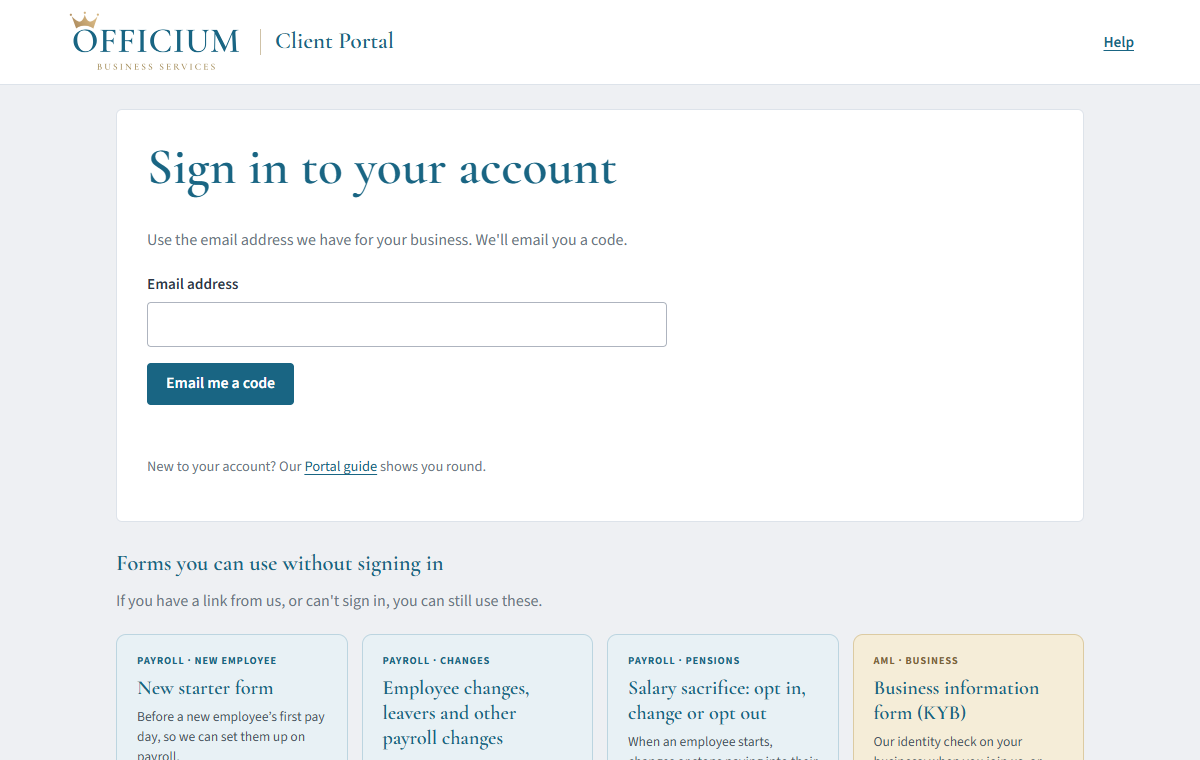
You stay signed in for 12 hours on that device. Press Sign out (top right) when you’ve finished, especially on a shared computer.
If you deal with us for more than one business, a Business list appears next to your name at the top. Choose the business you want to work on.
2. Home
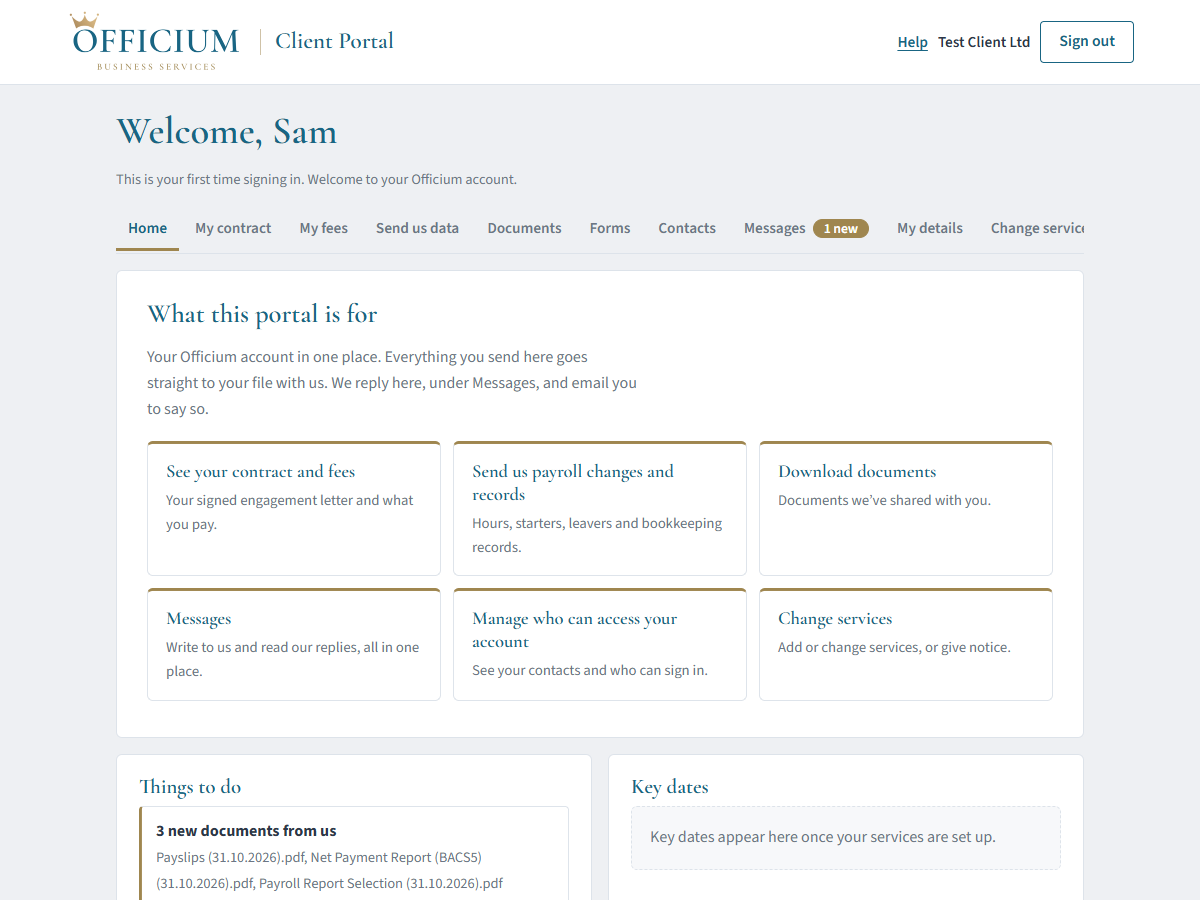
Home is where to start each time. It shows:
- What this portal is for: shortcuts to the things you’ll use most.
- Things to do: anything we’ve asked you for, documents waiting for your signature and forms to check. Each has a button that takes you straight to it, and it drops off the list once it’s done.
- Key dates: your next payroll cut-off and pay dates, HMRC payment dates and, for limited companies, when your accounts and confirmation statement are due at Companies House.
- Your Officium team: who to contact and how.
- Direct Debit and Invoices: set up your Direct Debit to us (it takes about two minutes) and view or pay your invoices.
- Install it: on a computer, Chrome and Edge offer to keep your account as an app with its own window and icon. See Is there an app? below.
3. Send us data
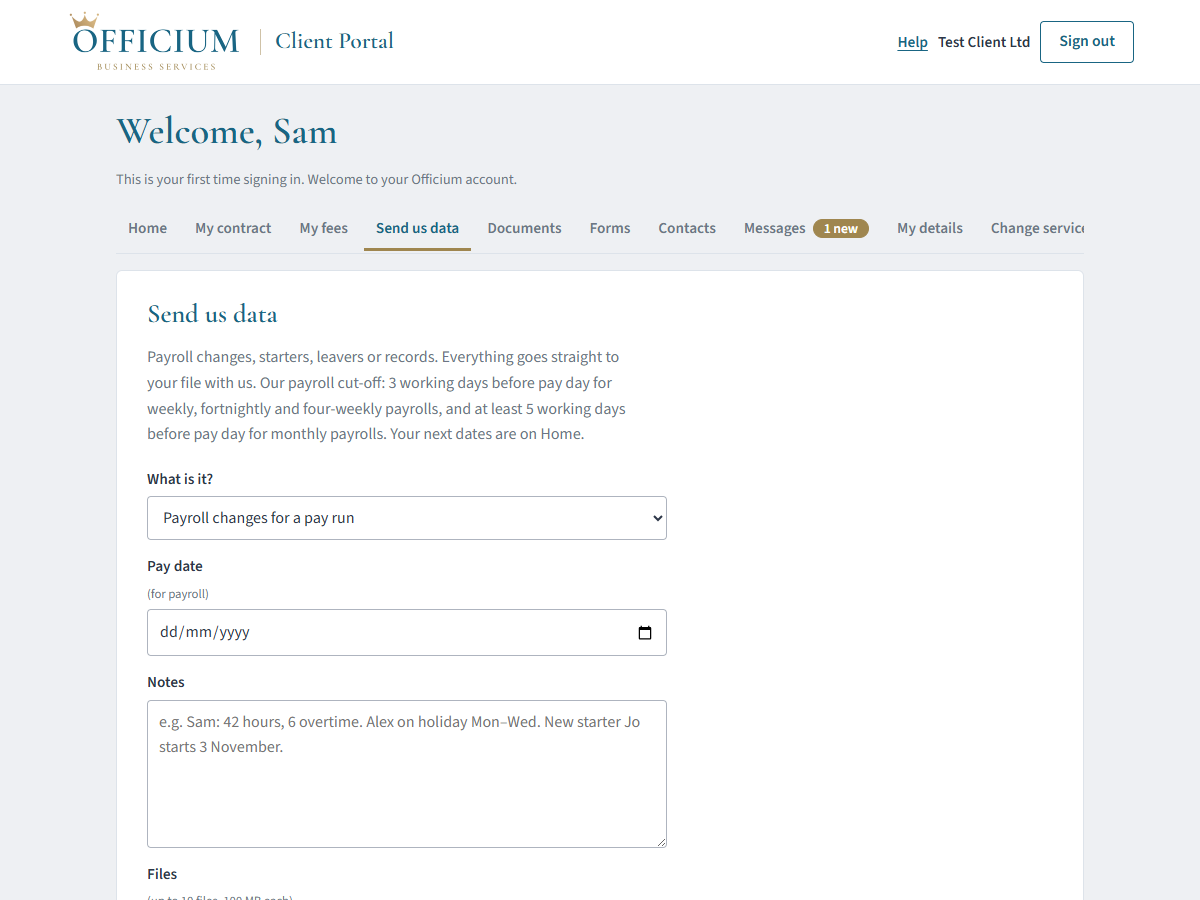
Use Send us data for your payroll each pay period, and for anything else we need from you.
- If we’ve asked you for something, choose it from Is this for one of our requests? so it’s ticked off for you.
- Choose What is it?: payroll changes for a pay run, a new starter, a leaver, bookkeeping records or something else.
- For payroll, add the pay date. Type the details in Notes (for example hours, overtime, holidays and sickness) and attach any files: up to 10 at a time, each up to 100 MB.
- Press Send. You’ll see it’s been received, and it goes straight to our payroll team.
4. Documents
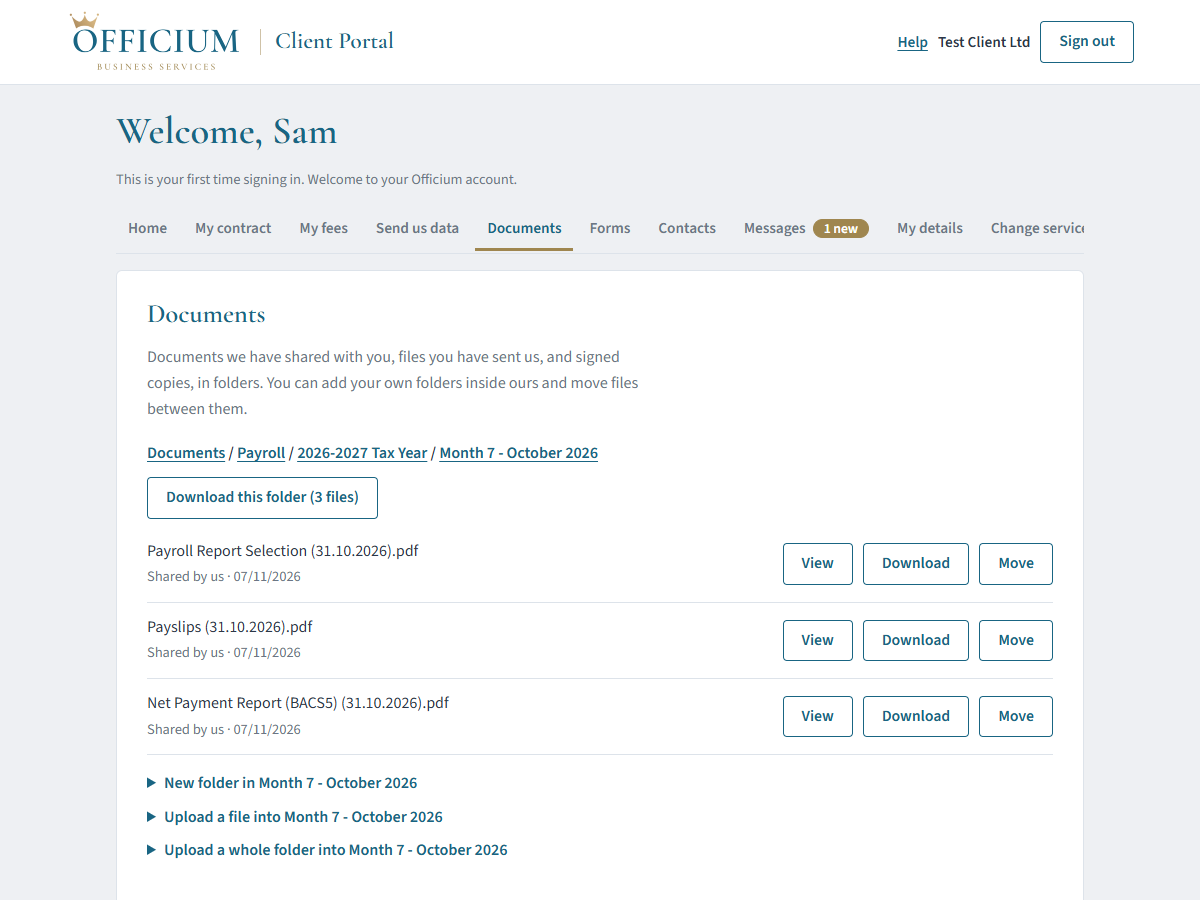
Documents holds everything we’ve shared with you (payslips, payroll reports, accounts and letters), the files you’ve sent us and your signed documents, sorted into folders: Payroll, Year end and accounts, HMRC, Bank, Agreements and Signed documents.
- Open a folder by clicking its name. The line at the top shows where you are; click a folder name there to go back up.
- View opens a PDF, picture or text file in a new tab. Download saves it to your device.
- Download this folder saves everything in the folder, and the folders inside it, as one .zip file.
- Upload a file into … (below the files) sends us files from your device straight into the folder you’re in, up to 100 MB each. Upload a whole folder into … sends a folder from your computer, with everything in it.
- New folder in … makes your own folder inside ours, and Move puts a file in a different folder. You can rename or remove folders you’ve made (a folder has to be empty to remove it).
When we share something, we email you with a button that opens the right folder. Sign in and you’ll go straight there.
5. Signing documents
When we send you something to sign, such as your engagement letter or a tax return to approve, it appears in Things to do on Home and under To sign at the top of Documents, and we email you.
- Press Open document and read it.
- Press Sign, then type your name or draw your signature with your mouse or finger, and tick to confirm.
- Press the sign button. A signed copy is saved in Documents → Signed documents, and you can download it at any time.
Only a main contact on your account can sign for the business. If a document is for someone else to sign, it says who we’re waiting for.
6. Forms
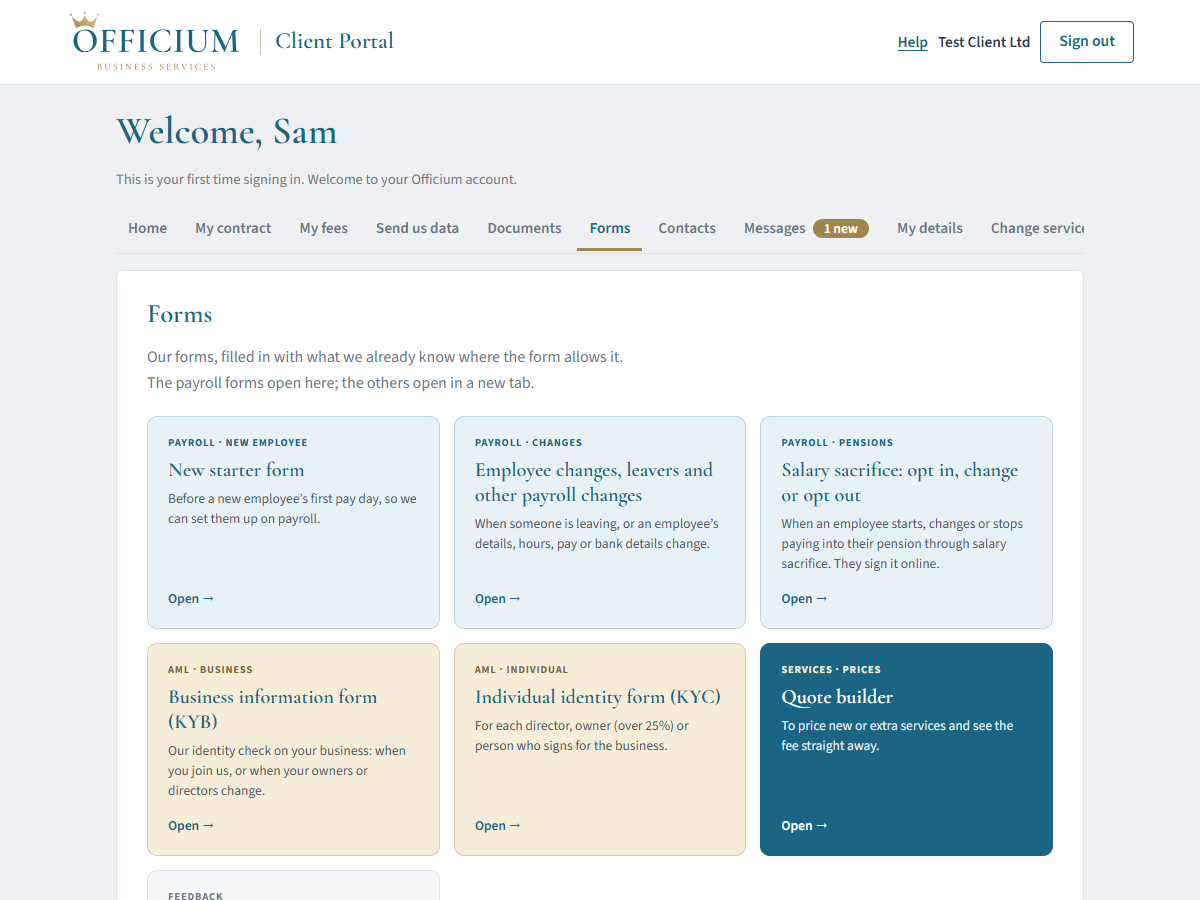
Forms has our forms, filled in with what we already know where possible:
- New starter form: fill it in yourself, or enter the new employee’s name and email and press Send them the form. They get a private link to fill in their own personal, tax and bank details. You’ll get an email and a Things to do item when they’ve finished; you add their job and pay, check it and send it to us.
- Employee changes, leavers and other payroll changes: a change of hours, pay, address or bank details, or someone leaving.
- Salary sacrifice: an employee starts, changes or stops paying into their pension through salary sacrifice. You sign for the business, then the employee signs online. Choose whether we email them the link to sign or you take the link and pass it on yourself - useful for somebody with no work email address. We need their email address either way, because the signed copy goes to them there.
- Business information (KYB) and individual identity (KYC) forms: the identity checks the law requires us to make on every client.
- The quote builder and the complaints form.
Employees’ bank details sent on our payroll forms are encrypted, used only to set up payroll, and then deleted. They are never kept in your account.
7. Messages
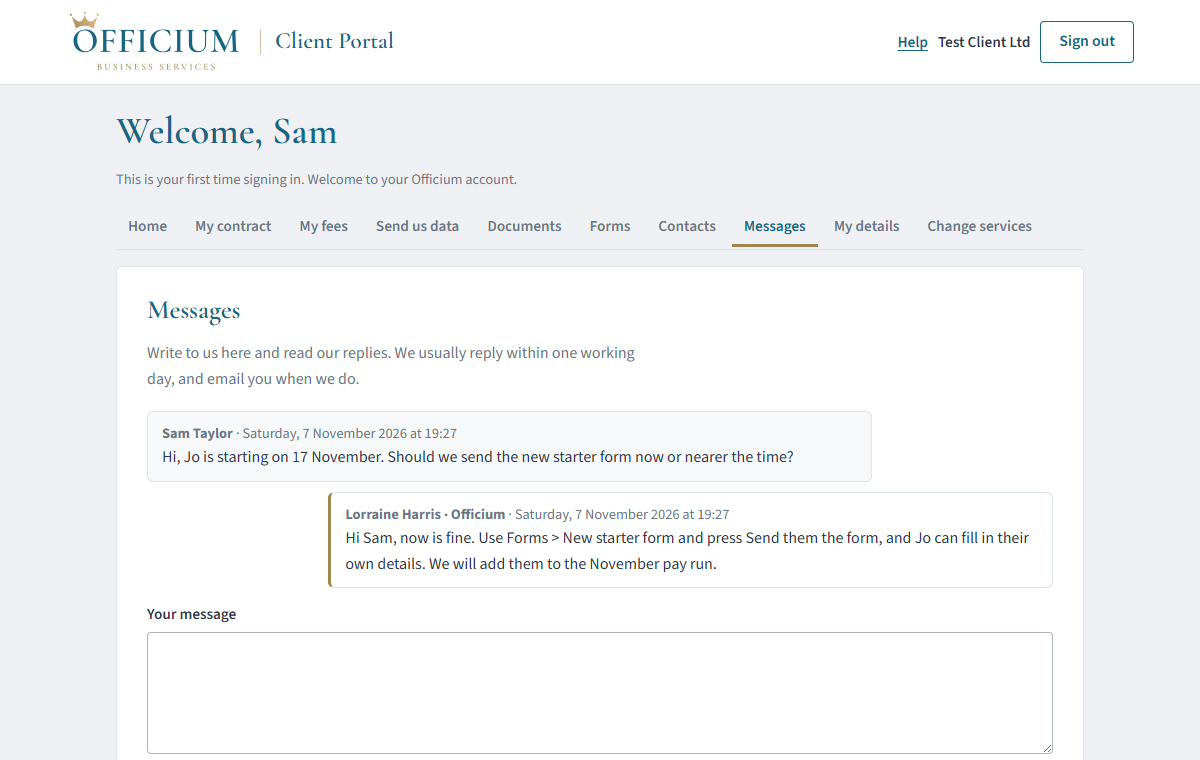
Use Messages for questions and anything that doesn’t fit elsewhere. Type your message and press Send. We usually reply within one working day, and email you when we do, so you don’t need to keep checking. A gold “new” label on the tab shows when there’s a reply you haven’t read yet.
8. Contacts
People & access lists the people who can deal with us for your business. A main contact can add someone else, for example an office manager who sends the payroll:
- Under Add a contact, type their name, email address and role.
- Tick Can sign in to this portal if they need their own access, and choose What they can see: Full access (everything), Payroll & HR (the payroll forms, Send us data and the Payroll folder in Documents) or Forms only (the payroll forms and nothing else).
- Leave Email them to say they can sign in ticked and press Add contact. We email them, and they can sign in straight away with their own email address.
Someone with Payroll & HR or Forms only sees just those tabs, and can’t see your contract, fees, invoices, messages or other documents. To change what someone can see, use the Can see list next to their name; Email sign-in details sends them the sign-in email again. Use Remove when someone leaves or no longer needs access. If you add a director, an owner or someone who signs for the business, we may need to check their identity, and we’ll be in touch. See Giving someone access to your account.
9. My contract, My fees and My details
- My contract: your signed engagement letter and any schedules of services and fees, each with Download PDF.
- My fees: the fees from your latest signed letter or schedule (before VAT).
- My details: your business’s address and phone number change straight away when you press Save changes. Other changes come to us to check first.
10. Change services
Open Change services and you’ll see What we do for you now: every service on your signed engagement letter or schedule, with the fee you pay for it.
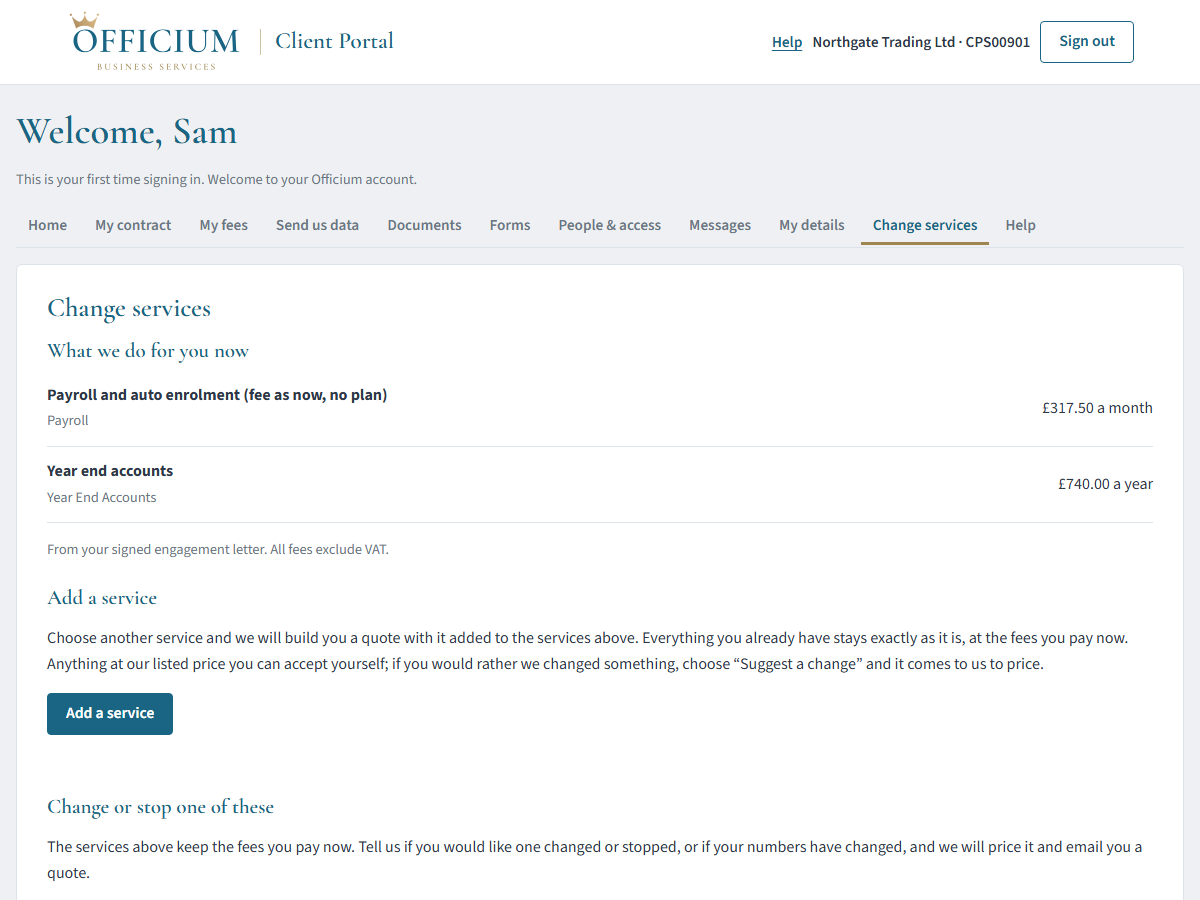
To add a service, press Add a service. That opens our quote builder with the services you already have shown at the top, so you only choose what you want adding. Everything you already have stays exactly as it is, at the fees you pay now. Anything at our listed price you can accept yourself, and we then email you an updated schedule of services and fees to sign online; the rest of your engagement letter stays the same. If you’d rather we changed something, choose Suggest a change on that service and it comes to us to price.
To change or stop a service, or if your numbers have changed (for example “we now have 12 employees”), say so in the box under Change or stop one of these and press Send my request. We’ll price it and email you a quote.
If you haven’t signed an engagement letter with us yet, or your accountant deals with us on your behalf, use the box instead and we’ll send you a quote.
The same tab shows how to end our services and the notice that applies to you.
11. If a partner firm arranges your payroll
If your accountant or another firm arranges your payroll with us, you’ll see their name (and perhaps their logo) in a bar at the top of your account. You’ll have Home, Send us data, Documents, Forms and Messages, which work as described above. Your contract, fees and services are with your partner firm, so please speak to them about those. When you send a message you can tick to copy your partner firm in.
12. Common questions
- Is my information safe?
- Yes. Everything travels over an encrypted connection and is stored encrypted. Only you, the people you add as contacts and our team can see your account, and every sign-in needs a fresh code sent to your own email address.
- Can I use it on my phone?
- Yes. It works in any up-to-date browser on a phone, tablet or computer. On a phone, swipe the row of tabs sideways to see them all.
- Is there an app?
- There’s no app to download, but you can have your account as one. On a computer, in Chrome or Edge, use the Install it button on Home, or the install icon at the right-hand end of the address bar. It then has its own window and its own icon on your taskbar, with no address bar, and opens straight at your account. On an iPhone or iPad, tap Share and then Add to Home Screen; on an Android phone, use Add to Home screen in the browser’s menu. It is the same account either way, so nothing changes about how you sign in.
- Our bank details have changed. How do I tell you?
- Please call us on 01942 644864. For your protection we only accept a change to your business’s bank details by phone, on a number we already have for you. We will never ask for your online banking login or passwords.
- A colleague needs to send us the payroll. Can they have their own sign-in?
- Yes. A main contact can add them under Contacts, tick Can sign in to this portal and choose Payroll & HR so they see only the payroll side.
- Does a new employee need to sign in to fill in their new starter form?
- No. They get a private link by email that opens only their form. See New starters and team access.
- I can’t find a document you sent me.
- Use the button in our email, which opens the right folder. Otherwise look in Documents: payroll reports are in Payroll, by tax year and month. If it still isn’t there, send us a message.
- My file is very large.
- Each file can be up to 100 MB. If yours is bigger, send it in parts, or message us and we’ll help.
- I can’t sign in, or I’ve no access to my email right now.
- You can still use the forms on the sign-in page without signing in, or call us.
13. Getting help
If you’re stuck, send us a message in your account, call 01942 644864 or email hello@officiumbusinessservices.co.uk. We’re happy to talk you through it.