
Everyone who signs in to your account has their own sign-in with their own email address, so there’s nothing to share, and you can see who did what. You decide what each person can see.
1. Who can give access
The main contacts on your account can add people, change what they can see and remove them. Main contacts are the people on our records and on your engagement letter, usually the owner or a director. They’re listed at the top of the People & access tab.
Anyone else who signs in can see the list but can’t change it. If you need another main contact, or you can’t sign in yourself, ask us and we’ll do it for you.
2. Choose what they can see
| Level | What they can do | Good for |
|---|---|---|
| Full access | Everything in your account: documents, payroll, forms, messages, your contract, fees and invoices. They can’t change who has access unless they’re a main contact. | Directors, partners, your finance manager |
| Payroll & HR | The payroll forms (new starters, changes, leavers, salary sacrifice), Send us data for each pay run, and the Payroll folder in Documents. Nothing else: no contract, fees, invoices, messages or other folders. | HR or office managers who send the payroll |
| Forms only | The payroll forms only. | Managers who only take on new staff |
| Choose what they can see | You tick it yourself, part by part: which tabs, which forms and which folders in Documents. See below. | Anyone who needs more or less than the three above |
| Can’t sign in | Listed as a contact we can talk to, but no sign-in. | Someone we may speak to by phone or email |
What someone can see is checked on our side every time they do anything, not just hidden on the page. If you change it, it applies straight away, even if they’re signed in at the time.
Ticking it yourself
If none of the three fits, choose Choose what they can see and tick:
- Parts of the account: Send us data, Documents, Forms, Clock in, Messages, My contract, My fees, My details, Change services, People & access. Home and our help guides are always open to anyone who can sign in.
- Forms they can send: the new starter form, employee changes and leavers, salary sacrifice, and bank details. This shows once you tick Forms.
- Folders in Documents: your own folders, so you can give someone the Payroll folder, or just one year inside it. Ticking a folder gives them everything inside it, sub-folders included. This shows once you tick Documents.
Two worth knowing. Messages is one conversation for the whole account, so anyone given it can read everything that has ever been written there, fees and contract talk included. And bank details is off unless you tick it: if someone sends us a change to a bank account we already hold, we always ring a number already on file before anyone here can read it.
Nothing is saved until you press Save what they can see. If you’d rather we set it up, ring us on 01942 644864 and we’ll do it from our side.
3. Add someone
- Sign in at clients.officiumbusinessservices.co.uk/account and open People & access.
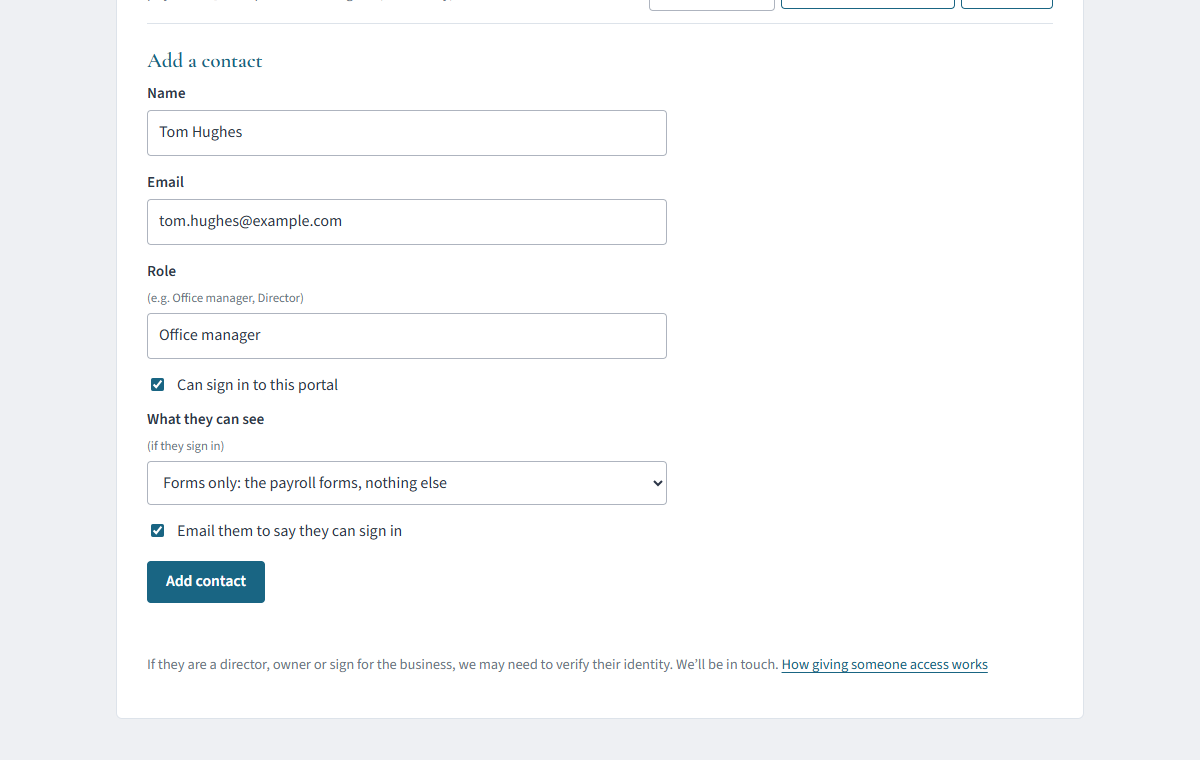
- Under Add a contact, type their name, their own work email address and their role (for example “HR manager”).
- Leave Can sign in to this portal ticked, and choose What they can see.
- Leave Email them to say they can sign in ticked, and press Add contact.
4. What they get
We email them from Officium Business Services: “You’ve been given access to your business name’s Officium account”. It says who gave them access, what they can see, and has a Sign in to the portal button.
- They press the button (or go to clients.officiumbusinessservices.co.uk/account) and type the email address you added.
- We email them a 6-digit code. They type it in and they’re in. There’s no password to set or remember.
Each time they sign in they get a fresh code, and they stay signed in for 12 hours on that device. The email doesn’t sign them in by itself, so it’s no use to anyone who sees it by mistake.
5. Change what they can see
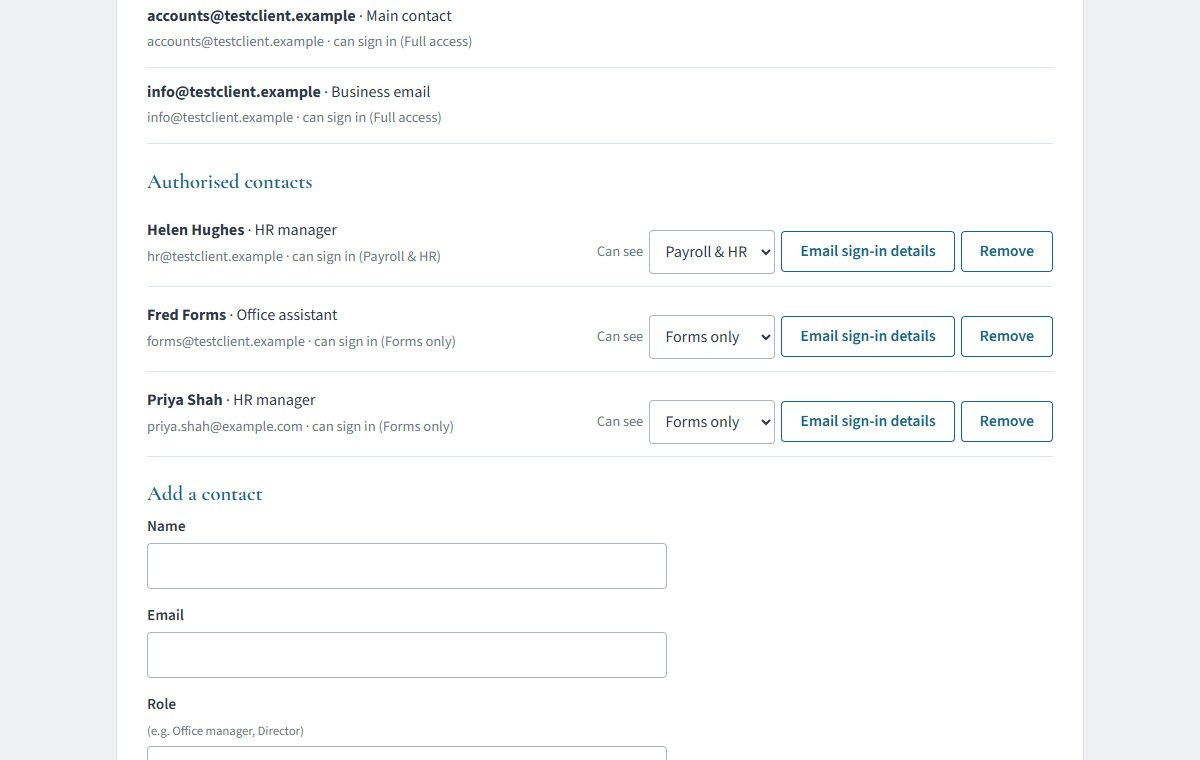
In People & access, everyone you’ve added is listed under Authorised contacts, with:
- Can see: choose Full access, Payroll & HR, Forms only, Choose what they can see, or Can’t sign in. You’ll be asked to confirm, and it applies straight away. If you’re letting someone sign in for the first time, we offer to email them.
- Choose what they can see: opens the tick boxes for that one person. Nothing changes until you press Save what they can see.
- Email sign-in details: sends them the email again, for example if they’ve lost it.
- Remove: takes them off the list altogether.
6. When someone leaves
On their last day, open People & access and press Remove next to their name, or set Can see to Can’t sign in if we may still need to speak to them. They can’t sign in from that moment, even if they’re signed in already.
If the person leaving is a main contact, or was the only person who could sign in, please tell us so we can update our records.
7. Common questions
- Can the people I add give access to others?
- No. Only main contacts can change who has access.
- Can they see our other businesses?
- No. They only see the business you added them to. If you’d like them on another of your businesses, add them there too.
- They say the code never arrives.
- Ask them to check their junk folder and that they’re typing exactly the address you added. Check the address on the Contacts tab; if it’s wrong, remove them and add them again.
- Is there a limit?
- You can add up to 20 people. Call us if you need more.
- Does a new employee need access to fill in their new starter form?
- No. Send them the form from Forms → New starter; they fill it in from a private link without signing in. See New starters and team access.
Getting help
Send us a message in your account, call 01942 644864 or email hello@officiumbusinessservices.co.uk. All our guides are at clients.officiumbusinessservices.co.uk/help.