
1. The short version
- As soon as someone accepts a job with you, sign in to your Officium account and send them the New starter form (Forms → New starter → Send them the form).
- They get an email from us with a private link. They don’t need an account or a password. They fill in their personal, tax and bank details in about five minutes.
- You get an email when they’ve finished. Add their job, start date and pay, check it and press Send. It comes straight to our payroll team.
2. Send your new starter their form
- Sign in at clients.officiumbusinessservices.co.uk/account.
- Open Forms and choose New starter.
- Under Send it to the new starter, type their name and their personal email address (they may not have a work email yet).
- Press Send them the form. You’ll see them listed underneath as “Waiting for them to fill it in”.
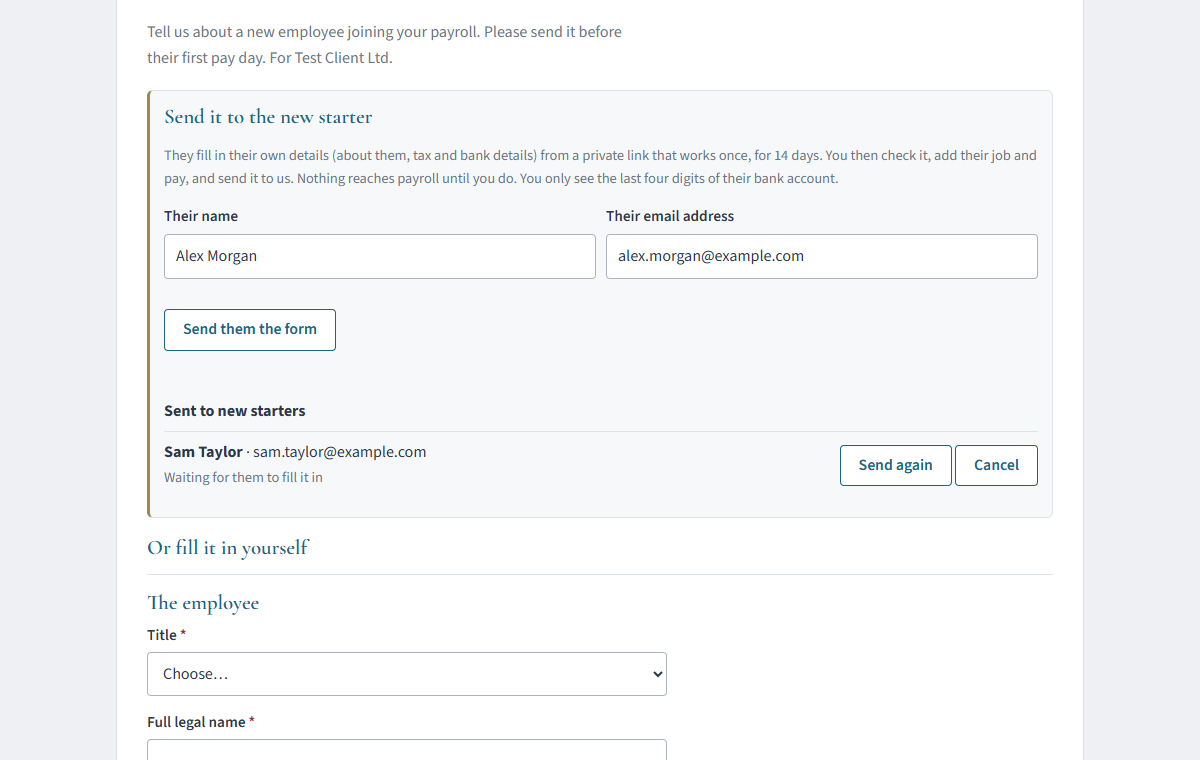
If they say the email hasn’t arrived, ask them to check their junk folder, then press Send again (this also gives them a fresh 14 days). Typed the wrong address? Press Cancel and send it again to the right one.
You can also fill the form in yourself, further down the same page, if your new starter is with you.
3. What your new starter does
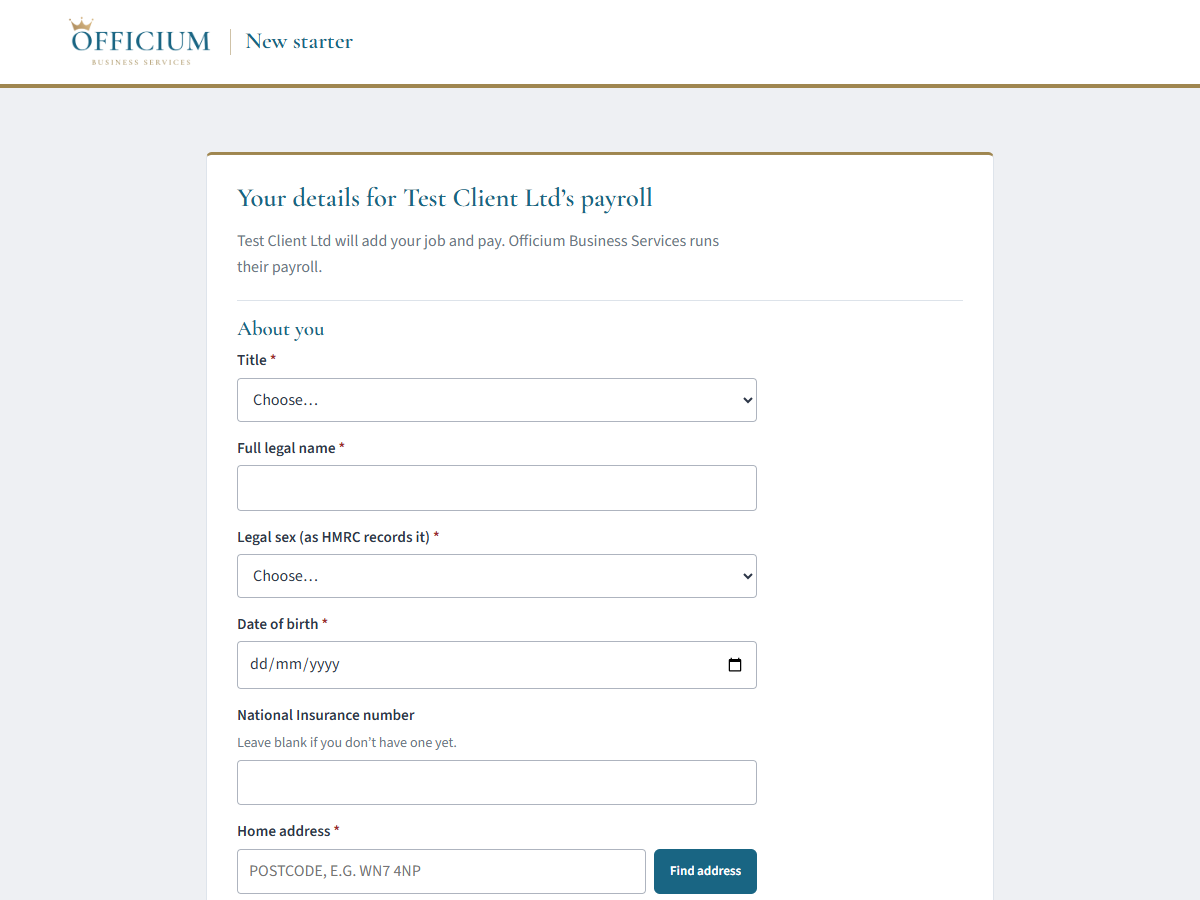
They get an email from us called “Your new starter details for your business name”, explaining that you asked us to collect their details for your payroll. It has a Fill in your details button.
- No account, no password, no sign-in. The button opens their own form and nothing else. They can’t see your account or anyone else’s details.
- The link is just for them. It works once, for 14 days.
- They’ll need their National Insurance number, their bank details and their P45 if they’ve had another job since 6 April. If they have no P45, the form asks the HMRC starter questions instead.
- It works on a phone, tablet or computer and takes about five minutes.
4. Check it and send it to us
When your new starter has finished, we email you, and it appears in Things to do on Home as “Check and send”.
- Press Check and send. Their answers are filled in. You can’t change them, and you only see the last four digits of their bank account.
- Add the job details: job title, start date, pay, hours and anything else the form asks for.
- Press Send. It comes straight to our payroll team and you’ll get a reference.
Nothing reaches payroll until you send it. If something they wrote looks wrong, ask them, then Cancel and send them a fresh form.
5. If you’d rather we sent it
Email payroll@officiumbusinessservices.co.uk or call 01942 644864 with your new starter’s name and personal email address. We’ll send them the form for you. You’ll still get the email when they’ve filled it in, and you check it and send it to us as in section 4, because only you know their job and pay.
6. Give your HR or office manager a sign-in
The person who looks after new starters doesn’t need to see your contract, fees or invoices. Each person you add can have one of three levels:
| Level | What they can do | Good for |
|---|---|---|
| Full access | Everything in your account: documents, messages, contract, fees, invoices and contacts. | Owners and directors |
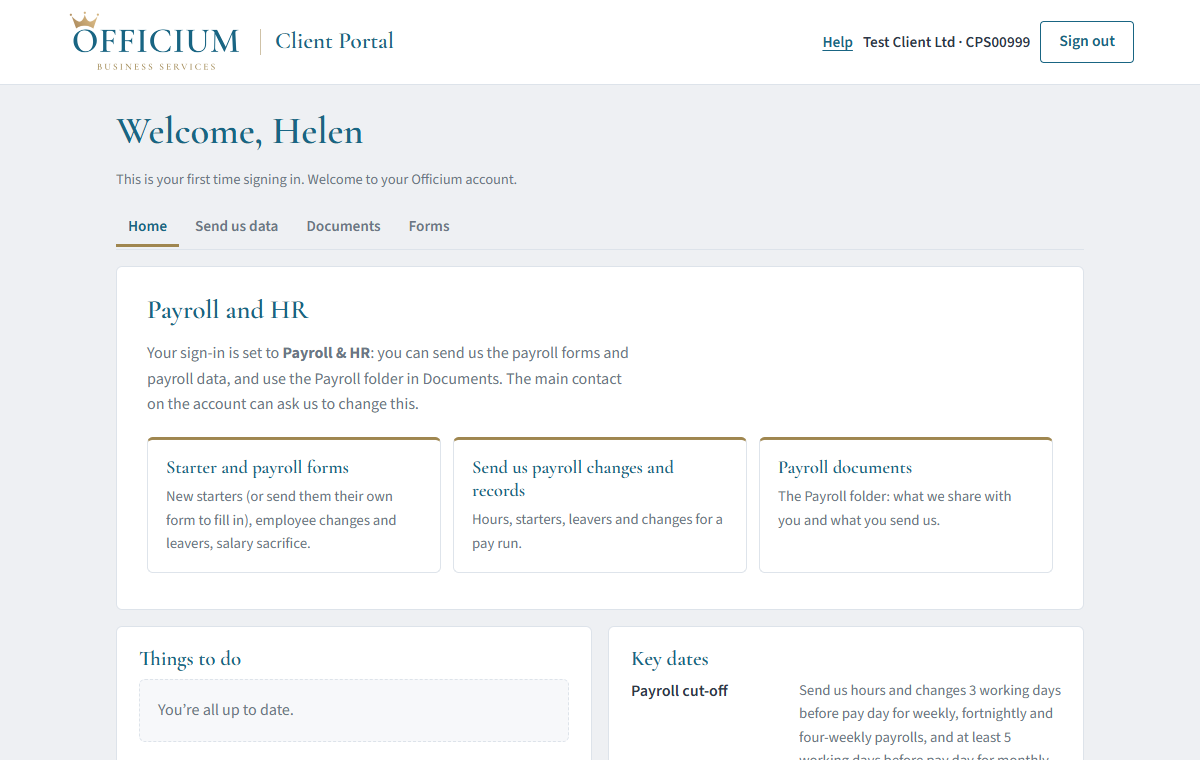
| Payroll & HR | The payroll forms (new starters, changes, leavers, salary sacrifice), Send us data for each pay run, and the Payroll folder in Documents. Nothing else. | HR or office managers who send the payroll |
| Forms only | The payroll forms only. No documents, payroll data or anything else. | Managers who only take on new staff |
- A main contact signs in and opens People & access.
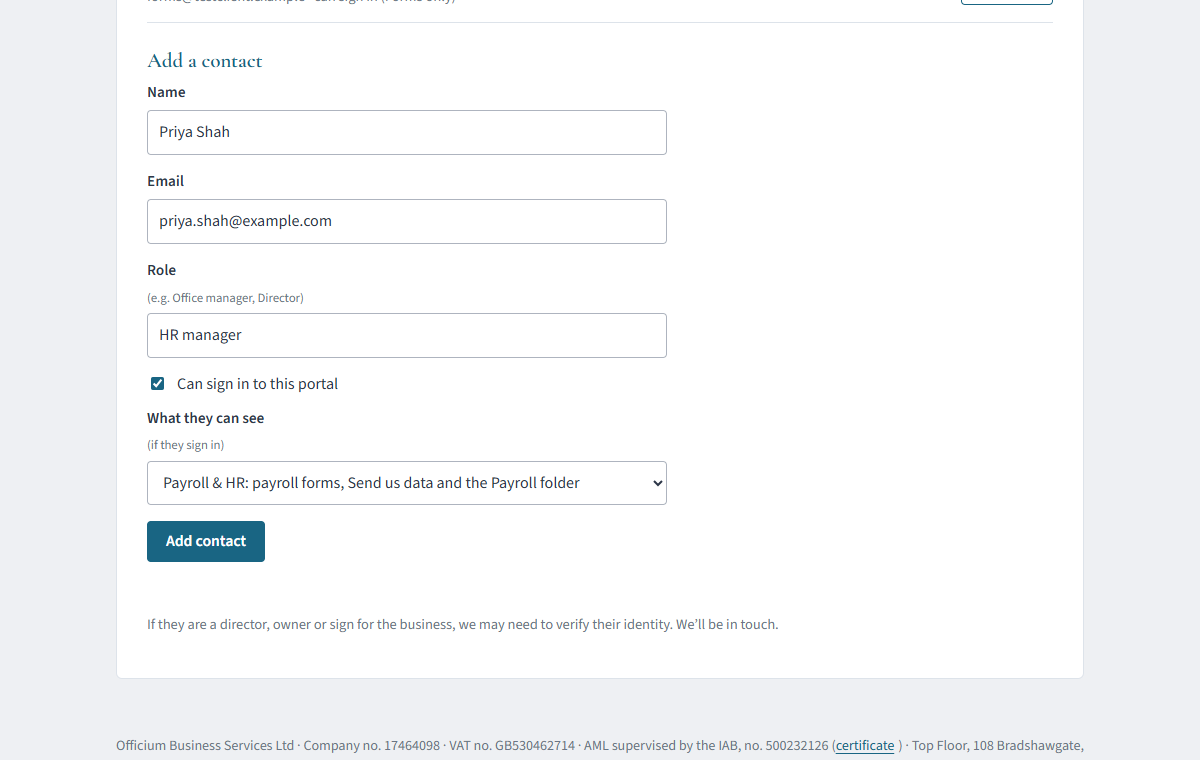
- Under Add a contact, type their name, email address and role, and tick Can sign in to this portal.
- Choose What they can see and press Add contact. They can sign in straight away with their own email address. We email them a code each time; there’s no password.
To change what someone can see, or stop them signing in when they leave, a main contact uses the Can see list next to their name on the Contacts tab. It applies straight away. Our guide Giving someone access to your account has the details.
7. Changes and leavers
In Forms, use Employee change for a change of hours, pay, job or address, or when someone leaves. Use General payroll change for anything else, and Salary sacrifice when an employee starts, changes or stops pension salary sacrifice. Someone with Payroll & HR or Forms only can use all of these.
8. Wording for your own process
Copy these into your recruitment checklist, offer letter or onboarding email.
For your onboarding checklist
New starter payroll details: when the offer is accepted, sign in to the Officium portal (clients.officiumbusinessservices.co.uk/account) → Forms → New starter → enter their name and personal email → Send them the form. When Officium emails to say it’s been filled in, open Check and send, add job title, start date, pay and hours, and send it. Do this at least a week before their first pay day. Can’t sign in? Email their name and personal email to payroll@officiumbusinessservices.co.uk.
For your new starter (offer letter or welcome email)
Our payroll is run by Officium Business Services. You’ll shortly get an email from them called “Your new starter details for [business name]” with a link to fill in your details. You don’t need an account or password. Please have your National Insurance number, your bank details and your P45 (if you have one) to hand, and fill it in within a few days, as the link expires after 14 days. Any questions about your job or pay, please ask [name].
9. Common questions
- Does my new starter need to sign in or set up an account?
- No. The button in our email opens their form directly. It shows them nothing else, and it stops working once they’ve sent it.
- The link has expired.
- Press Send again next to their name (Forms → New starter). They’ll get a fresh link for another 14 days, and the old one stops working.
- Can my HR manager see our fees or invoices?
- Not with Payroll & HR or Forms only. Those levels only show the payroll parts of your account, and that’s checked on our side as well as on the page.
- Is my new starter’s information safe?
- Yes. Everything is sent over an encrypted connection and stored encrypted. Their bank details are only seen by our payroll team and are deleted once payroll is set up.
- Our payroll is arranged by a partner firm. Does this still work?
- Yes, in the same way. The forms are in your account, and your partner firm can copy you in as usual.
Getting help
Send us a message in your account, call 01942 644864 or email payroll@officiumbusinessservices.co.uk. The full Portal guide covers everything else in your account.